Liquidity Pools
Liquidity Pools Explained
Liquidity pools are collections of tokens locked in a smart contract to provide liquidity for seamless token swaps.
Unlike other exchanges with a lot of complicated information, jargon and charts, Dexlyn liquidity pools are super easy to manage. It’s as simple as adding liquidity and earning rewards!
Dexlyn Swap & Liquidity Contracts
Users primarily interact with the smart contract for swap and liquidity at
0x0dc694898dff98a1b0447e0992d0413e123ea80da1021d464a4fbaf0265870d8::scriptsThis contract powers Dexlyn’s automated liquidity pools, ensuring efficient swaps and optimized asset distribution.
How to Add or Remove Liquidity in Pool on Dexlyn
- Connect Your Wallet
- Link your SUPRA Starkey wallet. Learn how.
- You’ll also need some tokens. Get tokens.
Alternatively, you can learn how to set up a Supra wallet, and learn how to get some $SUPRA tokens to swap with here.
- Access Liquidity Pools
- First, head over to the liquidity pools application here .
- If you haven’t connected a wallet, you can connect your wallet by clicking ‘Connect’ on the top right corner of your screen.
- Select a pool you want to participate in, or create a new pool.
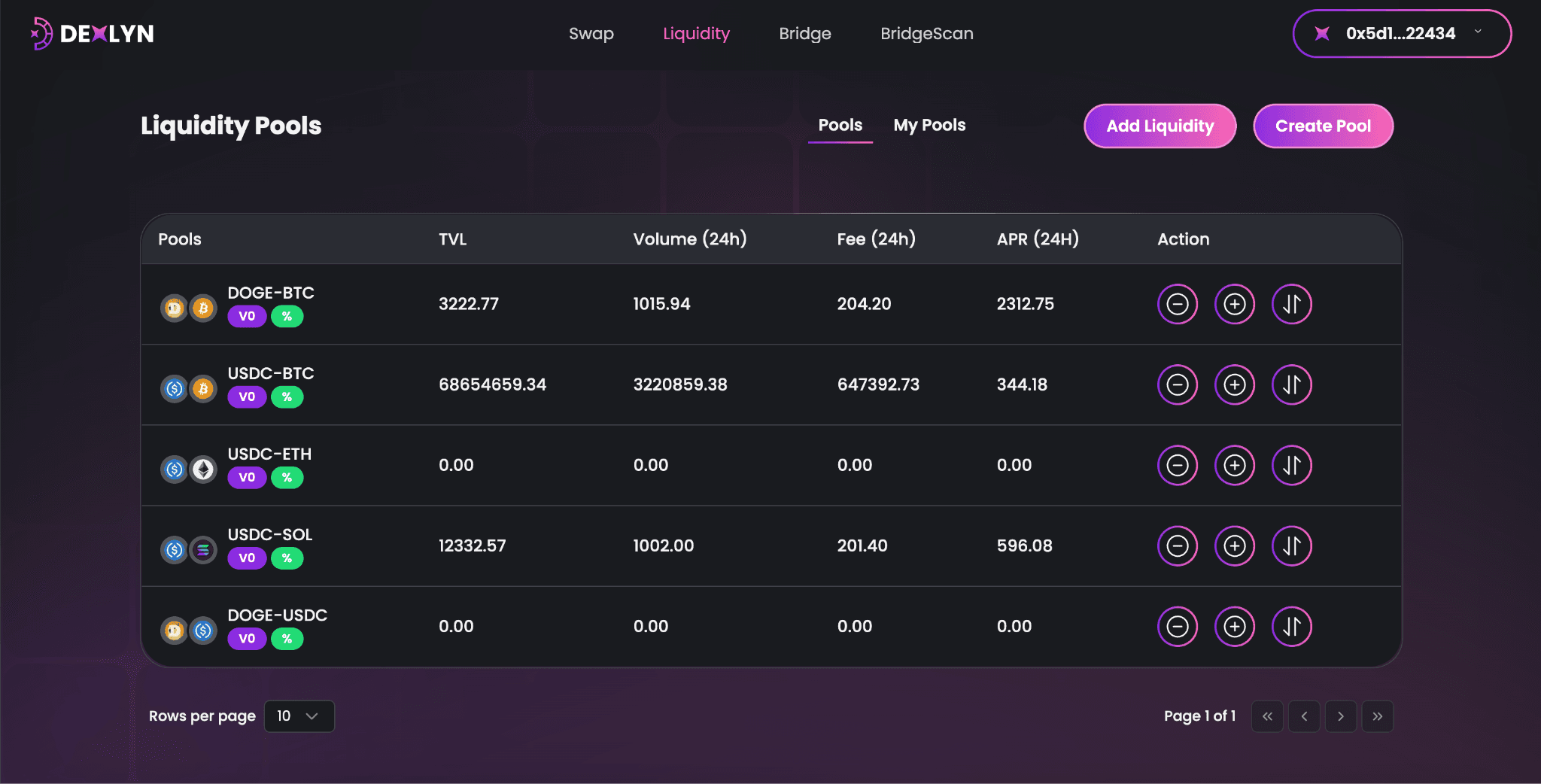
- Participate in an Existing Pool
- To add liquidity in an existing pool, you can click on the + icon in your desired pool, and follow the Add Liquidity process outlined below.
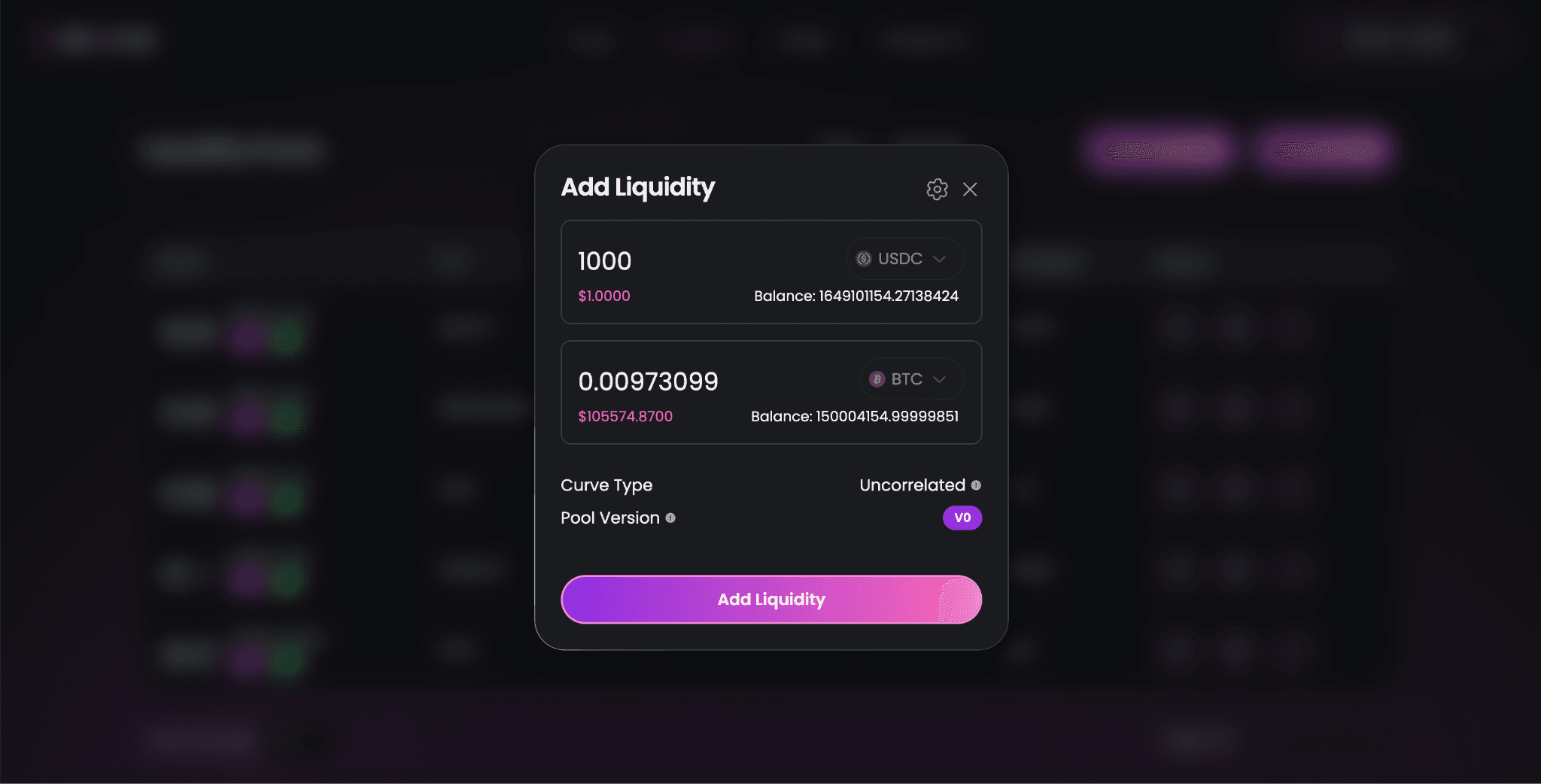
Add Liquidity Section
- Choose the tokens you wish to deposit into the pool (e.g., USDC and BTC).
- Input the amount for each token. The corresponding amount of the paired token will be auto-calculated based on the current pool ratio.
- Click the ⚙️ settings icon and choose your slippage tolerance (0.5%, 1%, or 2%) to protect against price changes.
- Click ‘Add Liquidity’: Confirm and approve the transaction in your SUPRA Starkey Wallet.
- Once the transaction is successful, your liquidity is added, and you start earning rewards based on swap fees in that pool.
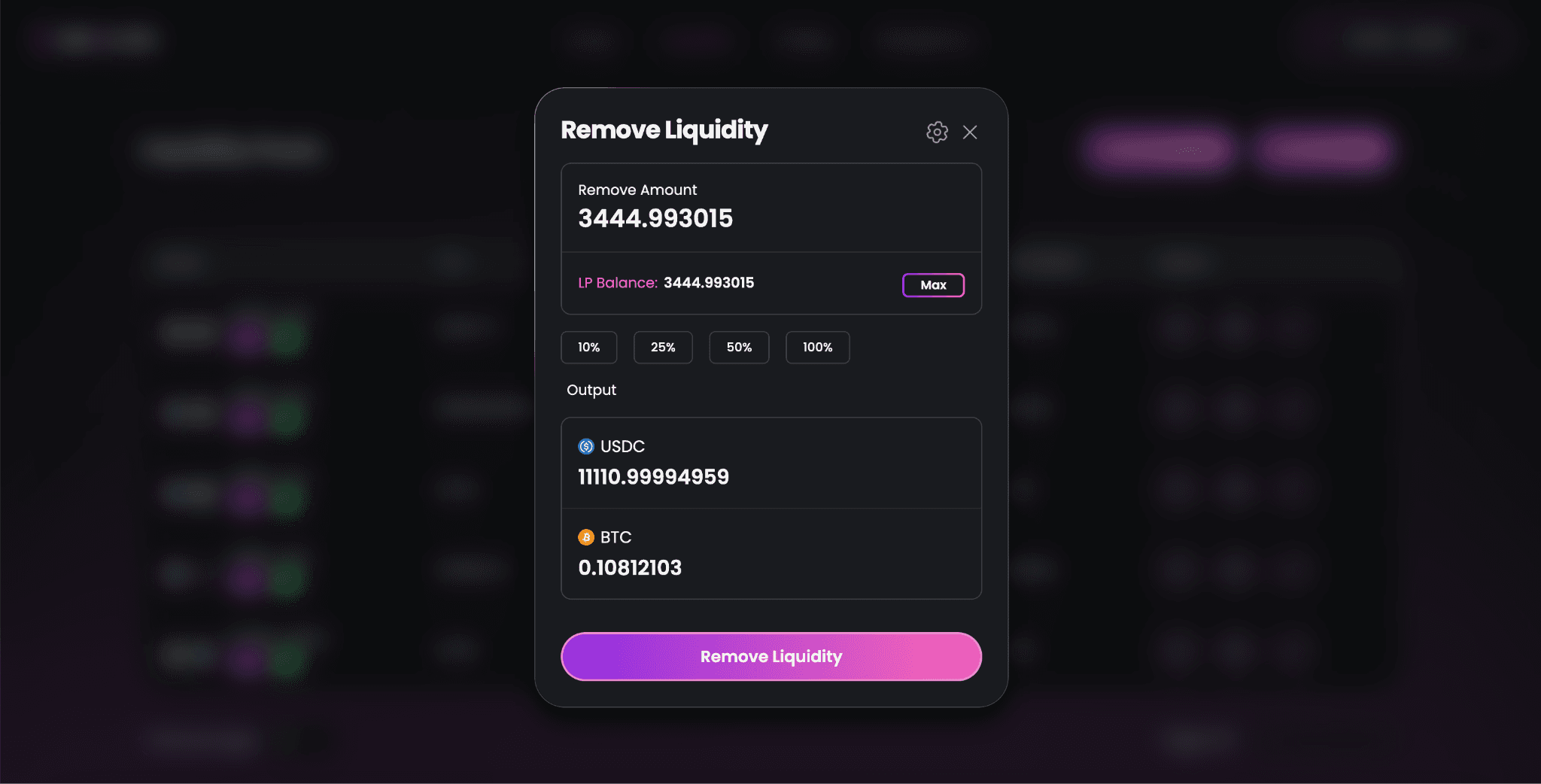
Remove Liquidity Section
- Click the “-” (Remove Liquidity) Icon: This opens the Remove Liquidity pop-up.
- You can see your LP balance, Enter the Amount to Withdraw.
- Click on the settings icon (⚙️) in the Remove Liquidity pop-up. Set your slippage tolerance to avoid unexpected price impact.
- The interface will display the approximate amounts of each token you will receive.
- Confirm and approve the transaction in your SUPRA Starkey Wallet.
- Once completed, the tokens are credited back to your wallet.
Create a New Pool
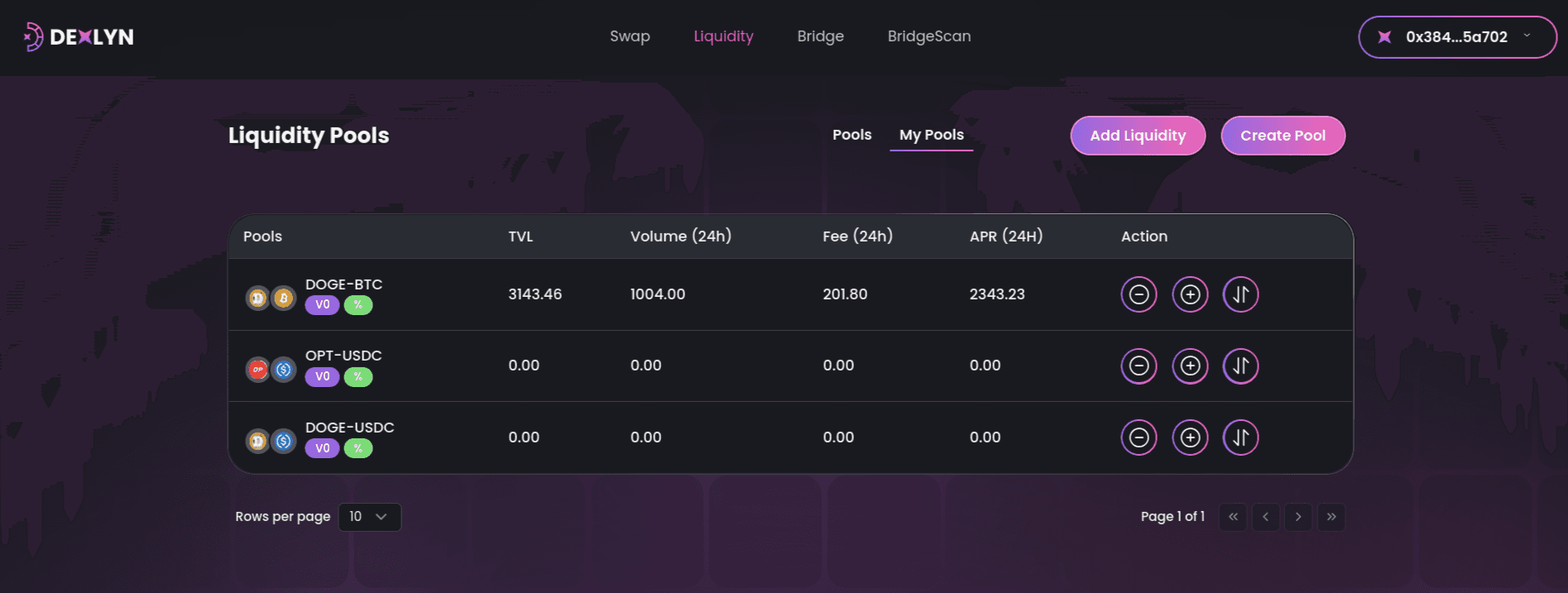
- In case you want to create a new pool, you can click on ‘Create Pool’ on the top right, as seen in the image below.
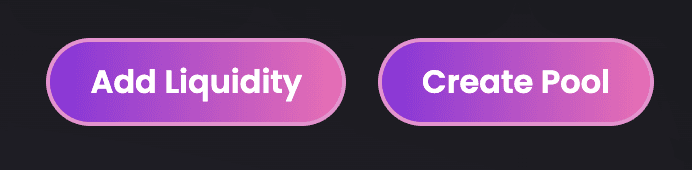
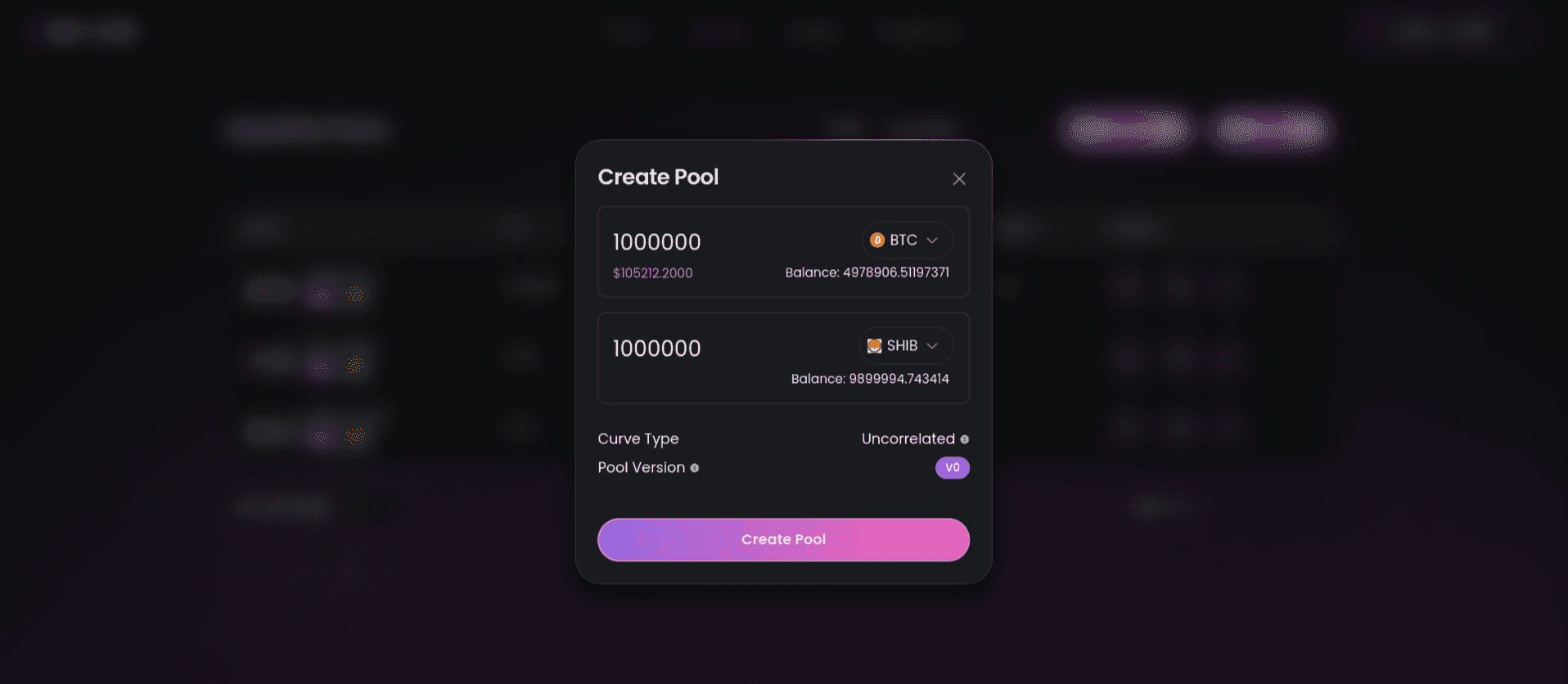
- That will open the Create Pool pop-up.
- Pick two tokens for the new liquidity pool (e.g., BTC & ARB).
- Input the amount for both tokens to fund the pool.
- Confirm and approve the transaction in your SUPRA Starkey Wallet.
- Once created, your pool is live, and liquidity providers can join, earning swap fees from trades! 🚀
My Pools Section
- My Pools tab displays all the liquidity pools that you have created or added liquidity to.
- Monitor your pools – View Total Value Locked (TVL), 24-hour volume, fees earned, and APR.
- If you don’t see any pools in My Pools, it means you haven’t added liquidity or created a pool yet. Click Add Liquidity or Create Pool to get started! 🚀
Adding liquidity is quick and easy—just a few clicks to start earning rewards!